UgPhone Macro Configuration Tutorial for Auto Clicker

UgPhone Macro Configuration Tutorial for Auto Clicker
Introduction
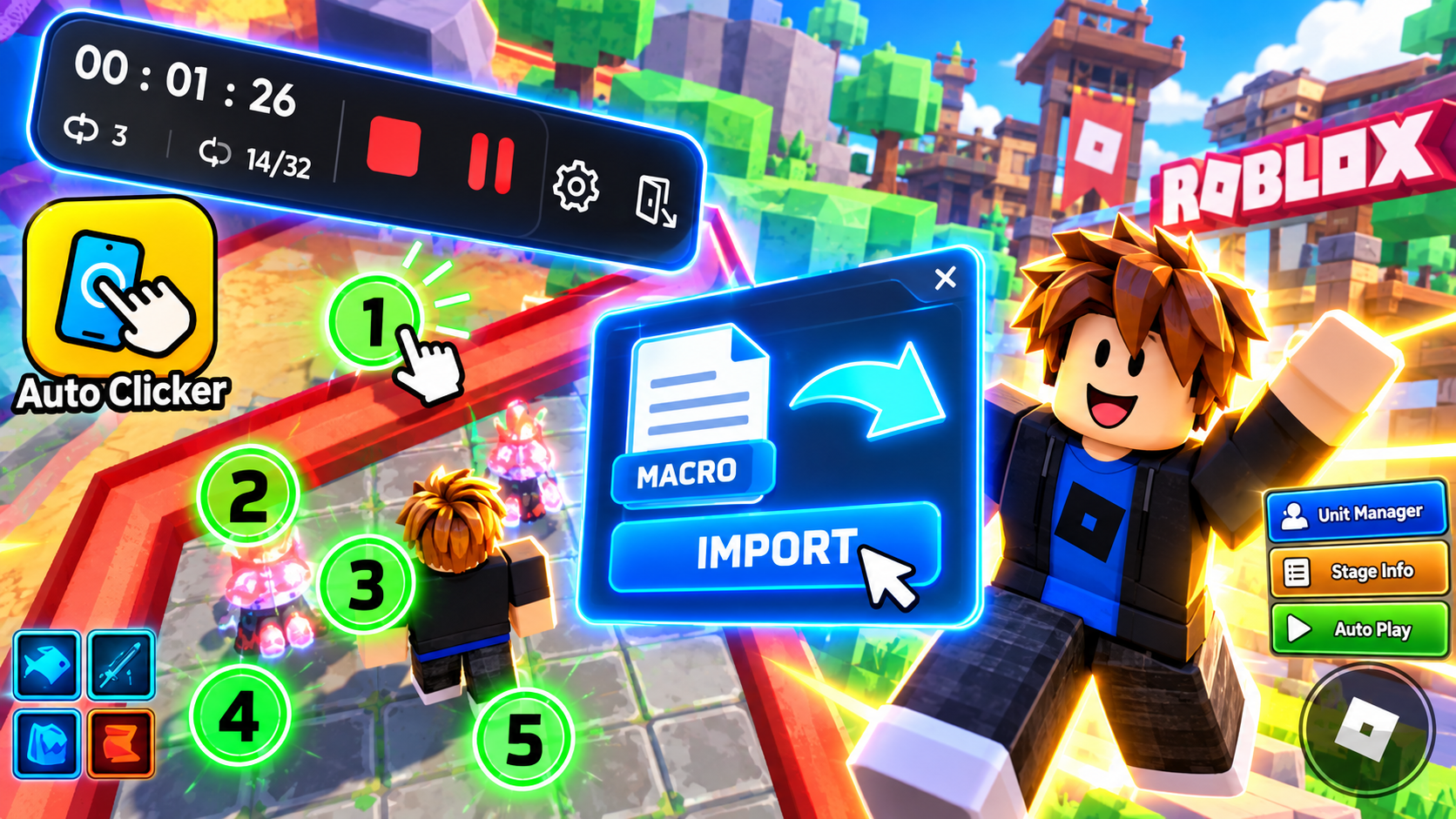
Rebuilding every Auto Clicker point by hand can take longer than the farming session itself. A macro configuration solves that setup problem by saving click locations, actions, and X and Y coordinates in one file. After importing it, the prepared points can appear at once. This complete UgPhone macro configuration tutorial keeps the original workflow intact: open Tool Center, install the required Auto Clicker, download a game macro, import it through Scripts, load the points, check the game screen, and start a short test before leaving the session running.
What Is a UgPhone Macro Configuration?
A macro configuration is a file that records the points an auto-clicking tool should use. It can contain click locations, click actions, and the related X-axis and Y-axis coordinates. When the file is imported into Auto Clicker, the saved points appear without requiring you to add them one by one.
In practice, a game guide creator may share a farming method together with a matching macro file. After downloading it, you can import the file into UgPhone’s Auto Clicker and move to the same in-game position. This saves time compared with watching a video and rebuilding every point manually. The points still need to match the current game interface, resolution, and location.
Macro File Safety and Account Checks
A macro file normally stores actions and screen positions for the clicker; it is not the same thing as game source code and should not modify game or device code. That does not make every download automatically trustworthy. Confirm the file source, avoid opening unknown attachments, and never enter account passwords into a macro file or an unrelated tool. Whether automated clicking is allowed depends on the game’s rules and terms of service. Test with a short session and stop if the behavior is unexpected.
How to Configure a Macro in UgPhone
Step 1: Open Tool Center
Open Tool Center inside UgPhone. This is the starting point for installing Auto Clicker and accessing the macro resources shown in the tutorial.
Step 2: Download Auto Clicker
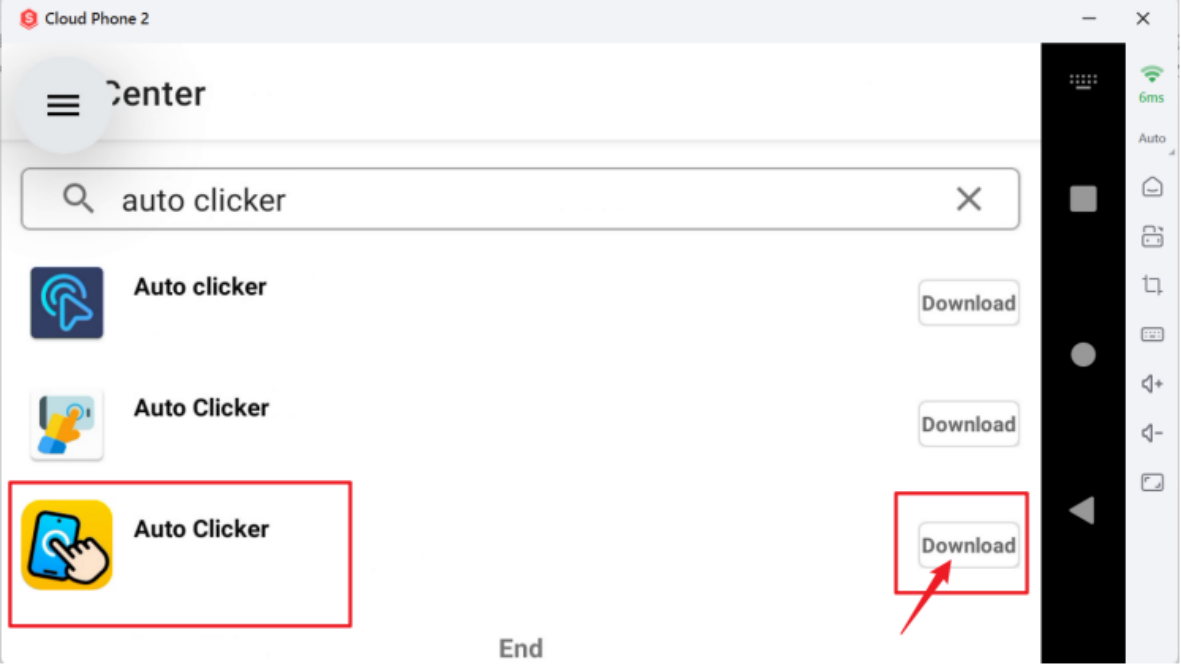
Type Auto Clicker in the search field. Find and install the application marked in the tutorial screenshots. The specified application matters because the following workflow uses its Scripts and Import controls. A different clicker may place those controls elsewhere or may not support the same macro format.
Step 3: Download the Macro Configuration
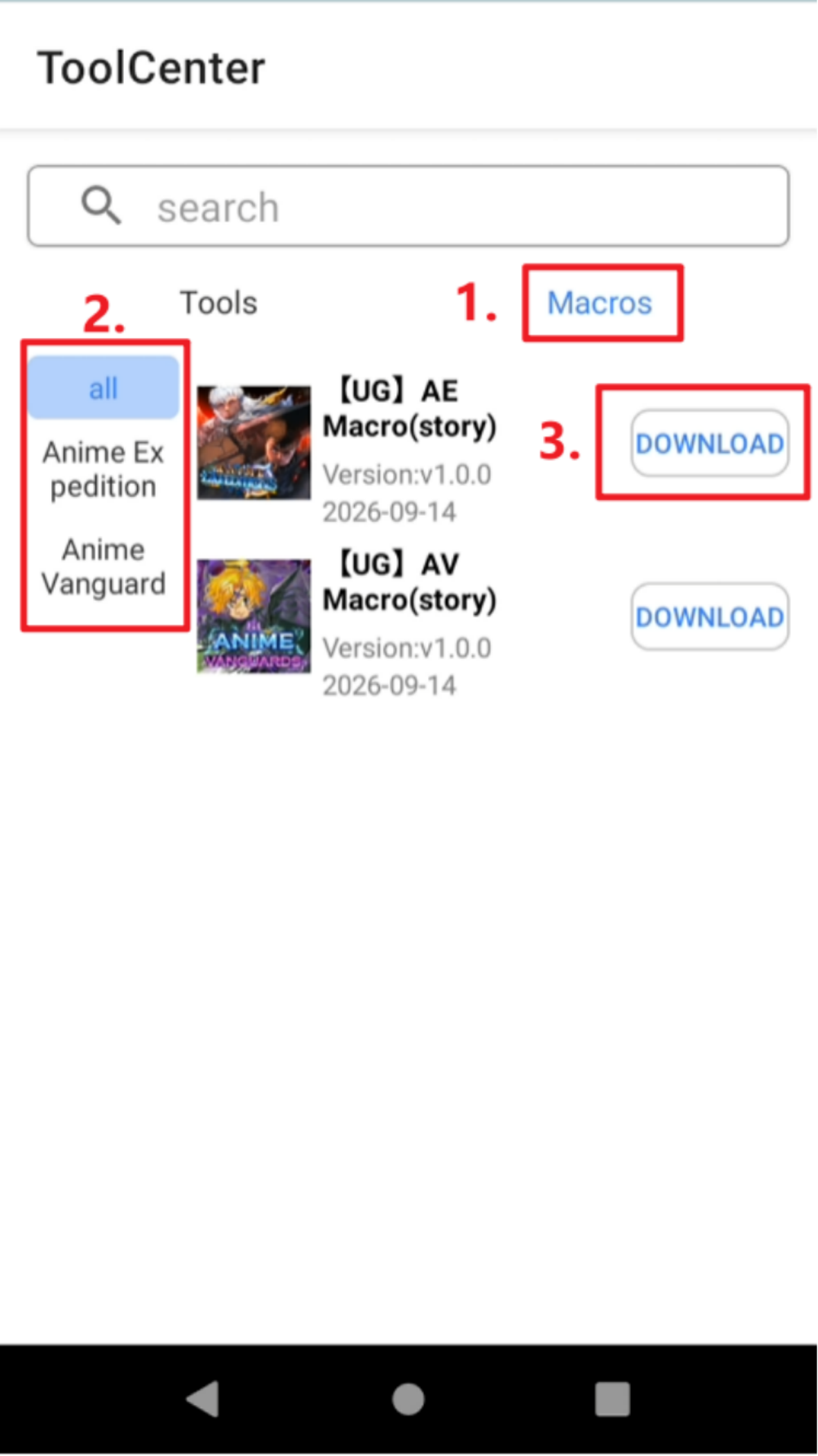
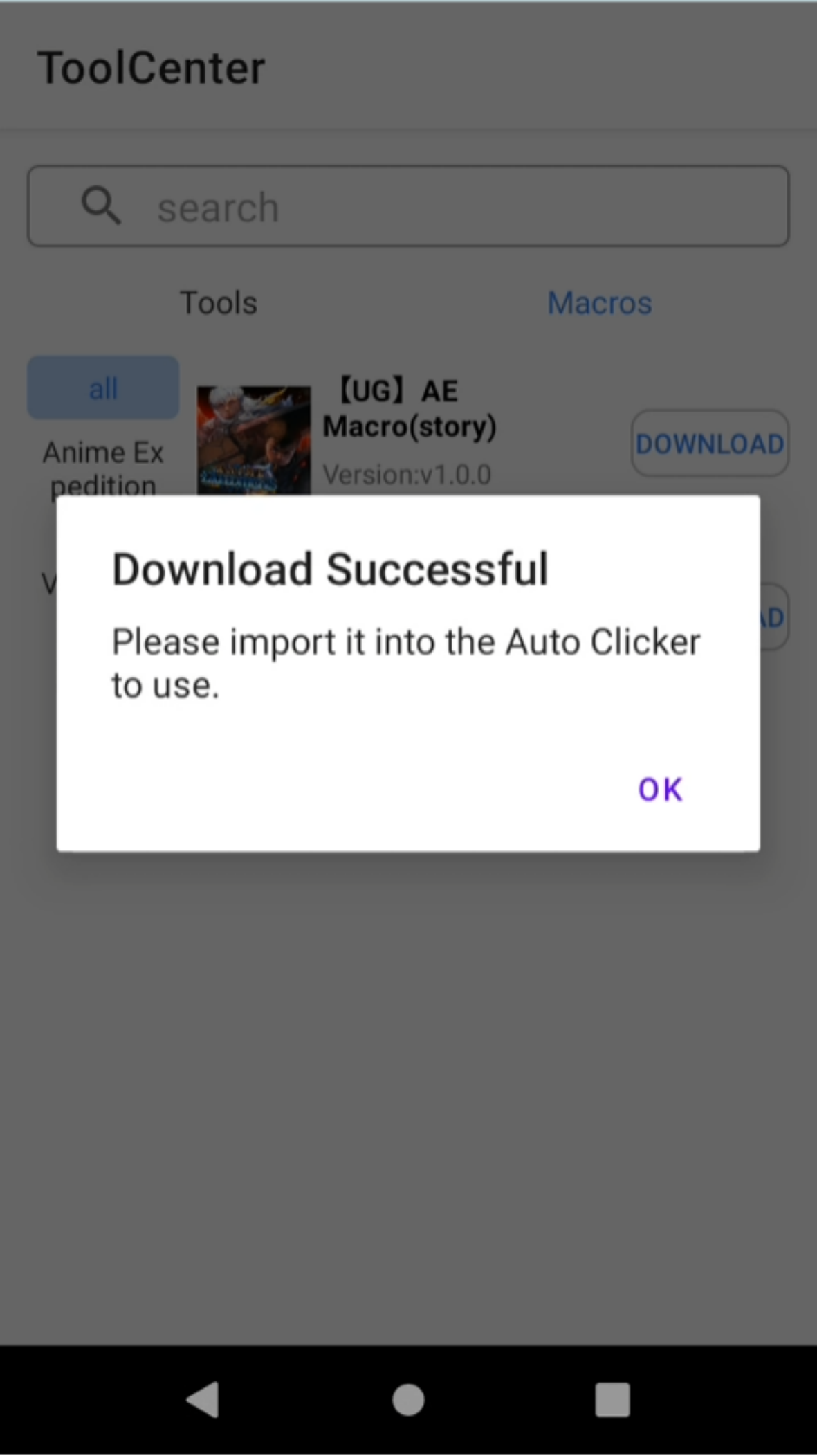
Return to Tool Center and open the Macros section. Select the game you want to run from the left side, choose the matching macro configuration, and press Download. Wait for the download-success message. Check the game name and version before choosing a file so that points from another title are not applied to the current screen.
Step 4: Open Auto Clicker
After the file finishes downloading, open Auto Clicker and confirm that its toolbar and controls are visible.

Step 5: Open the Script Import Page
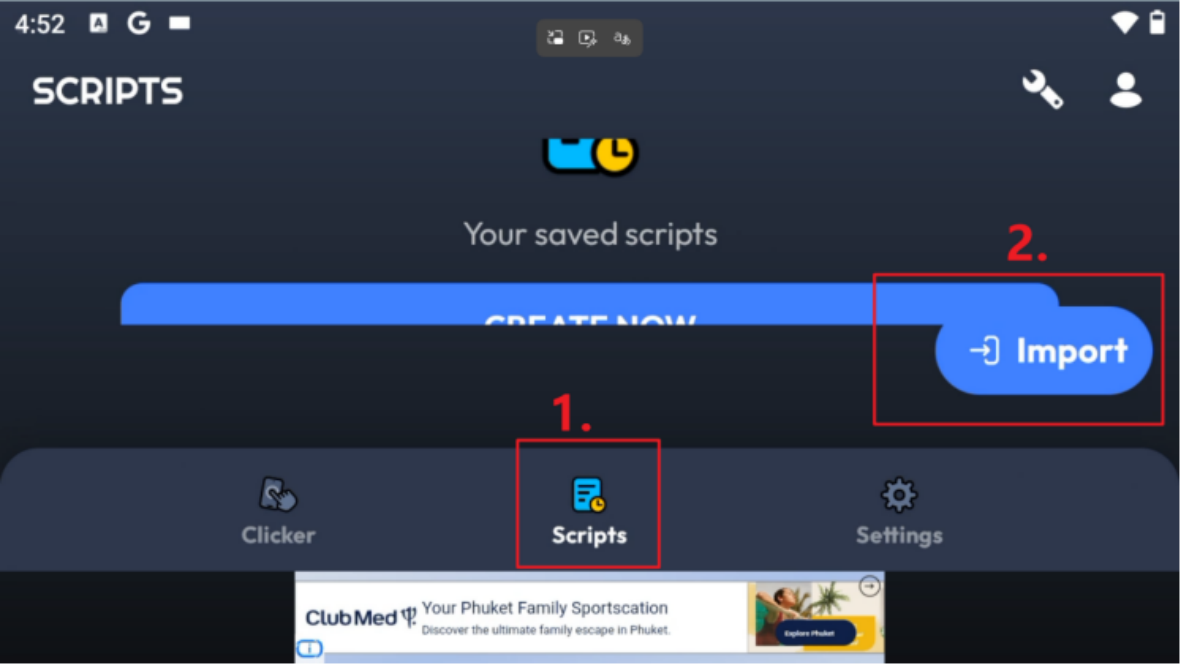
Tap Scripts at the bottom of the Auto Clicker interface, then tap Import on the right. This opens the file selection area used to bring in the downloaded configuration.
Step 6: Select the Macro File
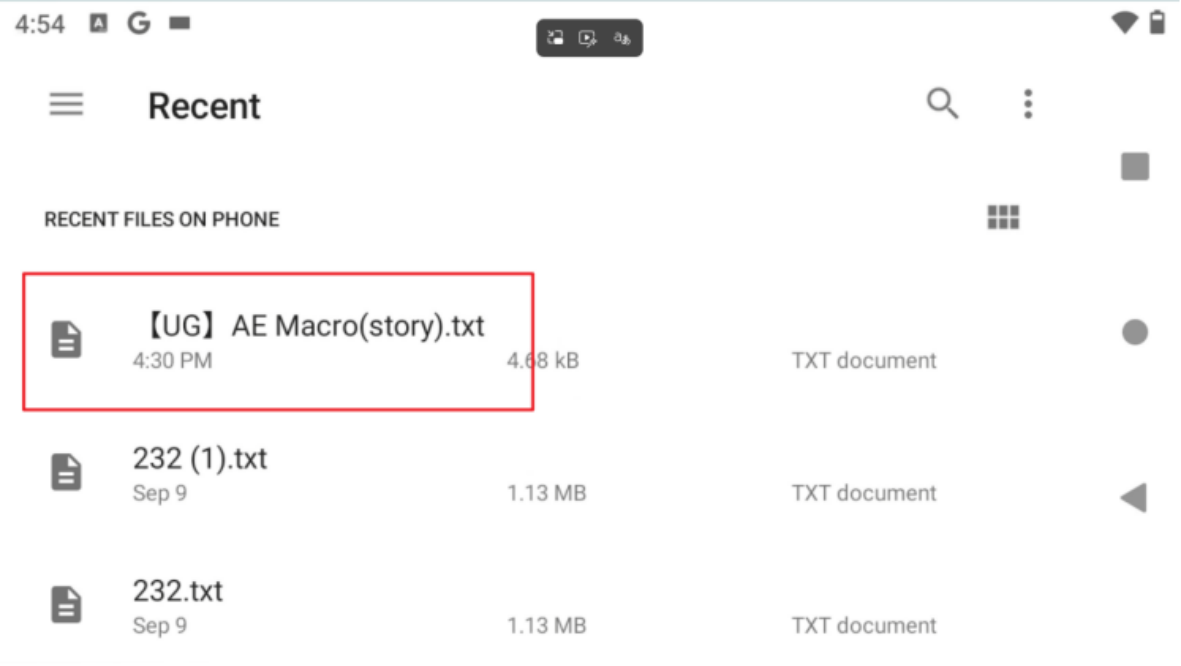
Find the macro configuration you just downloaded in the file list and select it. If the file is missing, confirm that the download completed and check the file location before trying again.
Step 7: Confirm a Successful Import
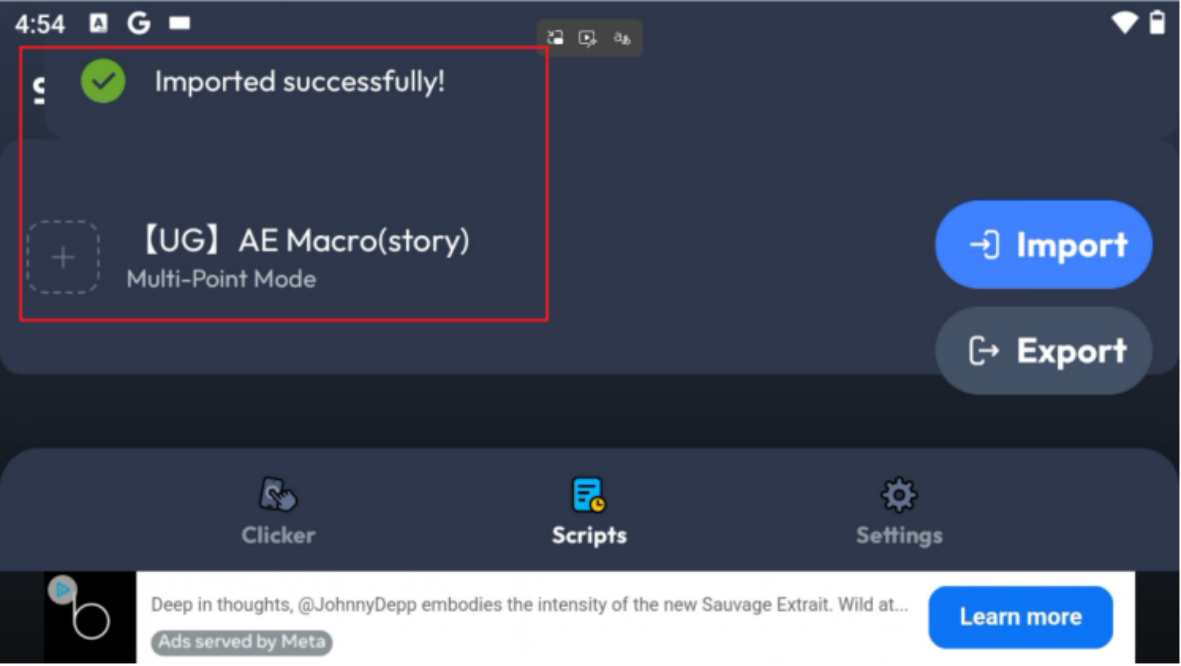
The message Imported successfully confirms that Auto Clicker accepted the macro. If the message does not appear, do not start farming yet. Recheck the selected file and the installed Auto Clicker version.
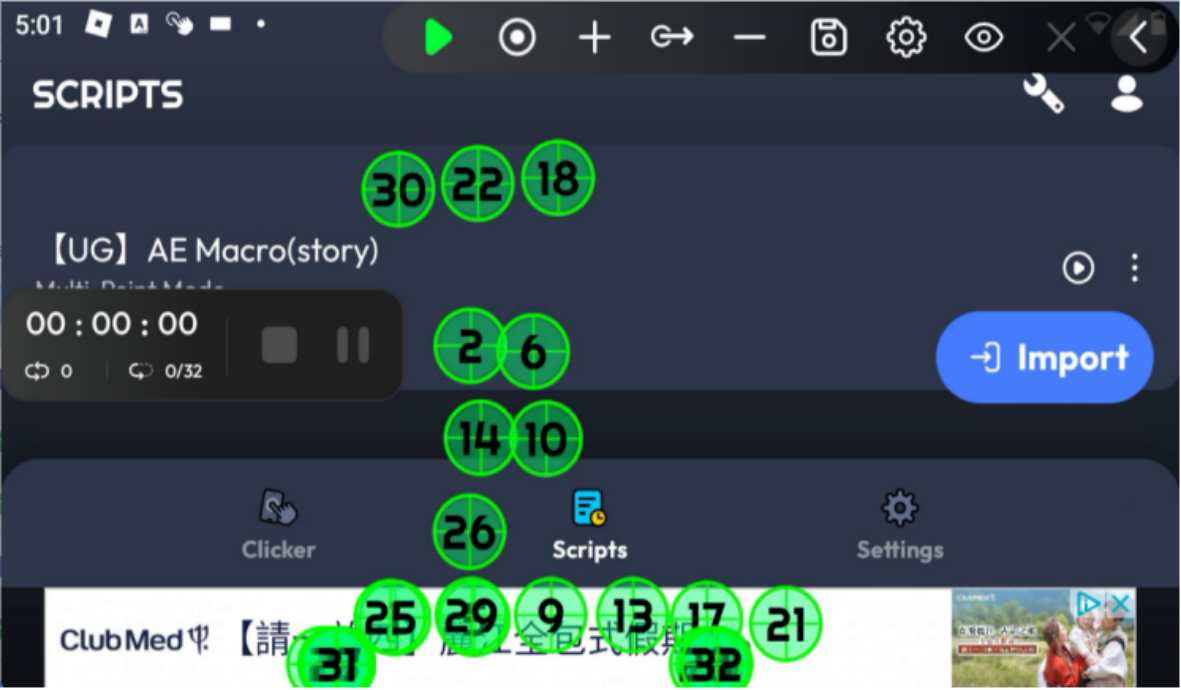
Step 8: Load the Click Points
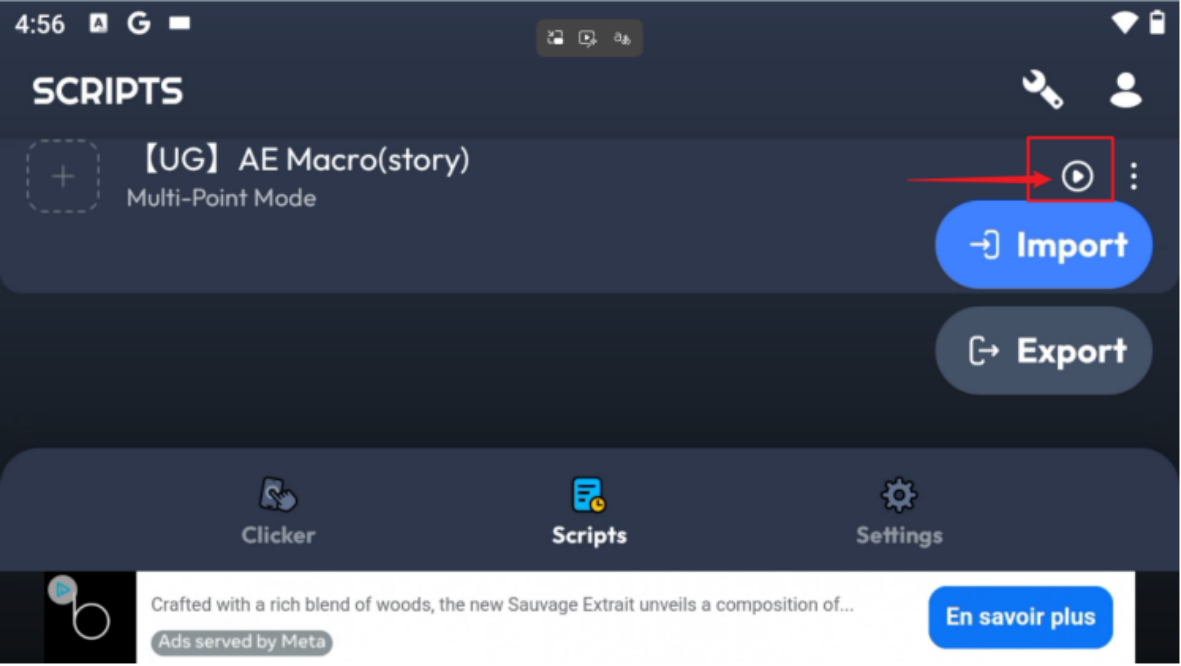
Press the start button beside the macro. The saved points should load onto the screen. Before starting a long session, inspect where each point lands and confirm that it targets the intended game control rather than an empty area.
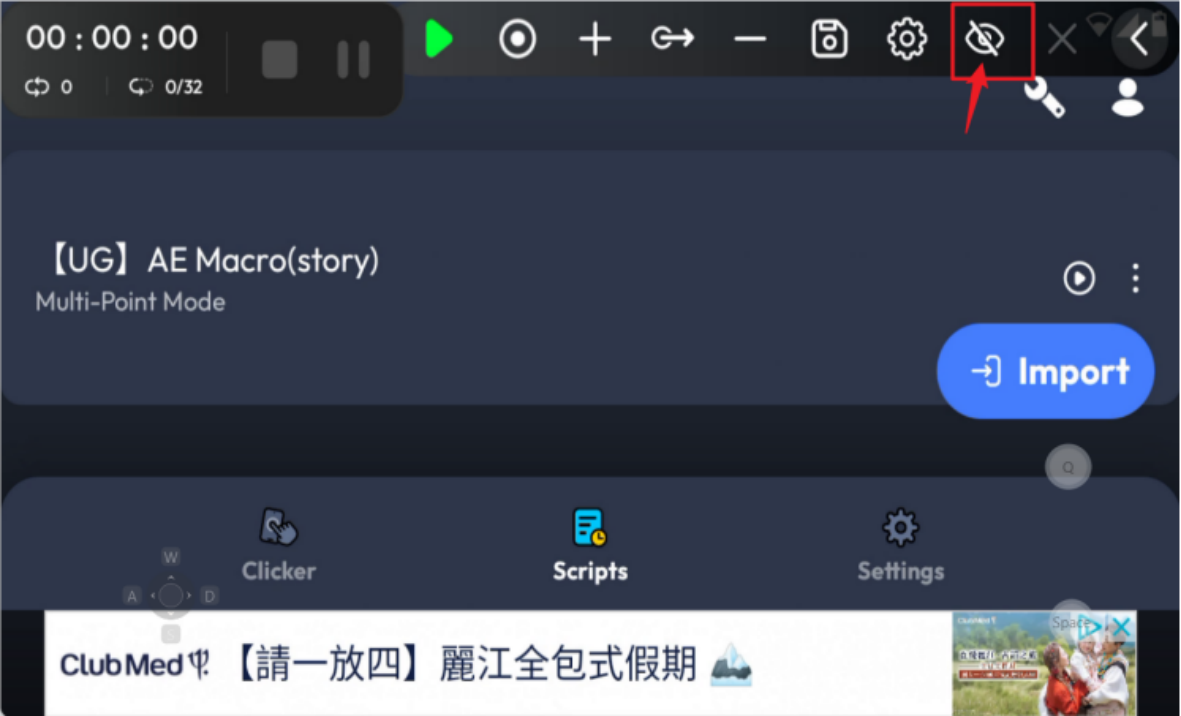
Step 9: Hide the Points When Needed
If the point markers cover the game view, tap the eye icon in the toolbar to hide them temporarily. Tap the eye icon again to show them. Hiding the overlays changes their visibility only; it does not mean that Auto Clicker has stopped.
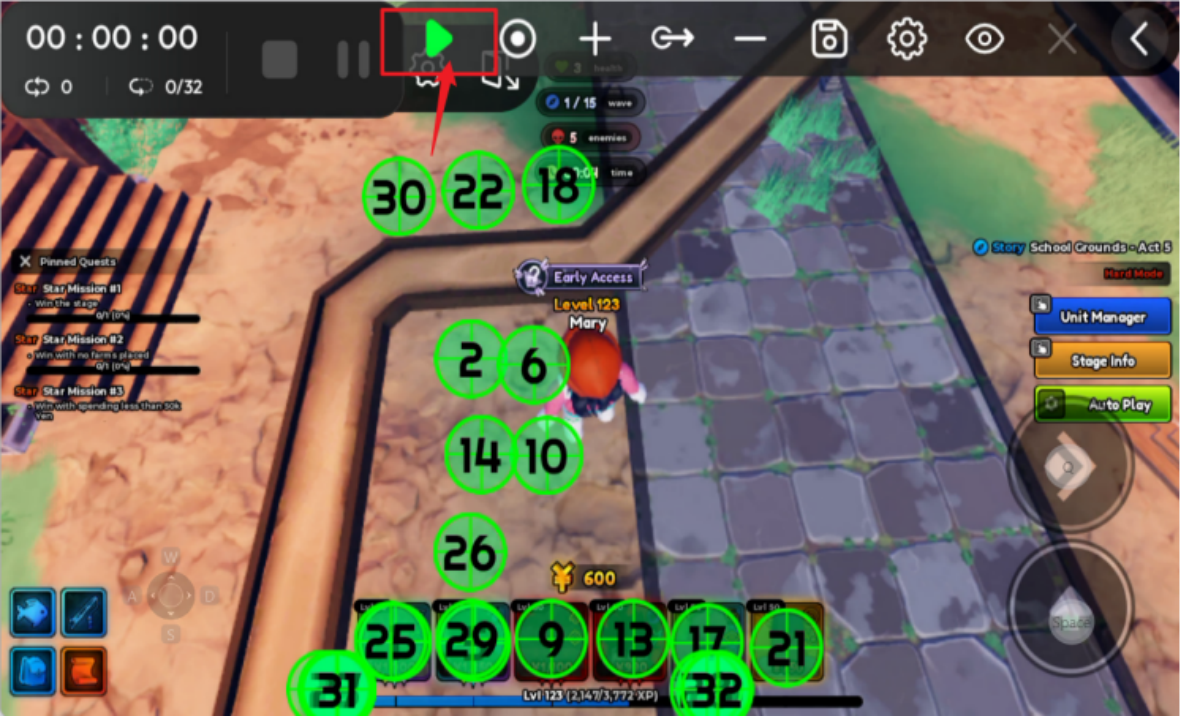
Step 10: Enter the Game and Start Farming
Open the game you want to run and move to the location that matches the macro. Compare the character position, map, window size, and click points. When the layout is close enough, press the start button. If the game screen differs from the tutorial, stop and correct the setup instead of allowing incorrect points to click continuously.
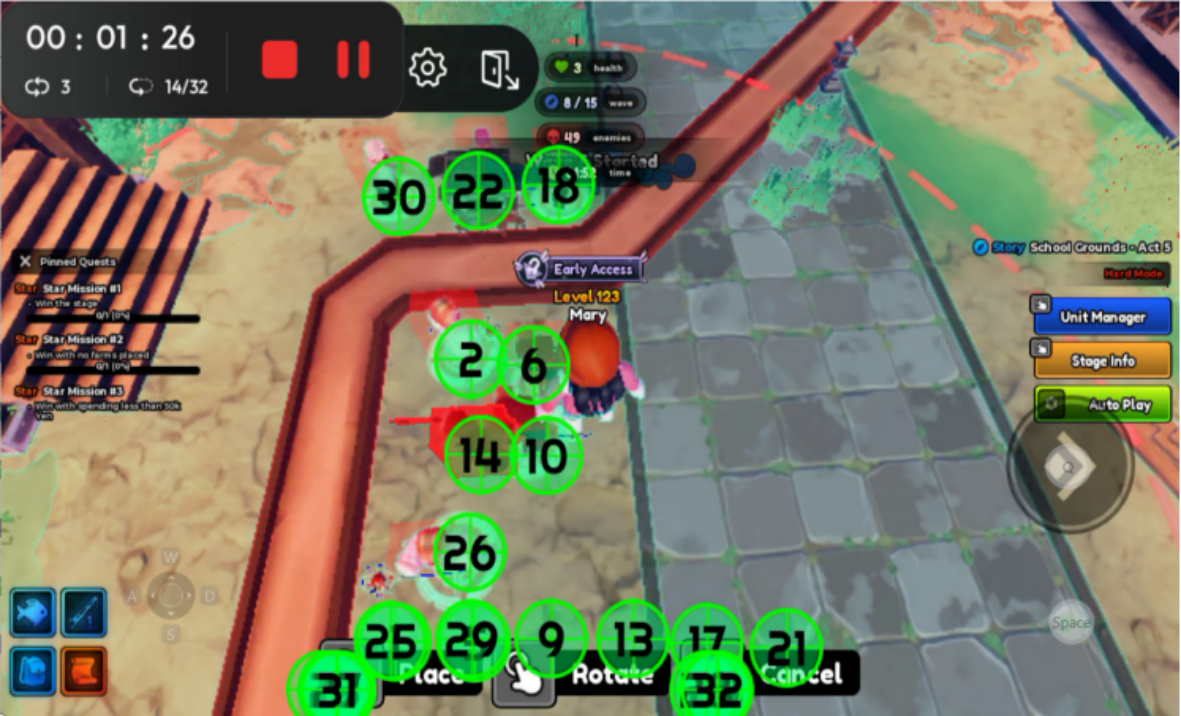
Step 11: Confirm That Auto Clicker Is Running
A visible timer or running status indicates that Auto Clicker has started. Press Stop when you need to end the session. For a first setup, run a short test and watch the game, point positions, and click frequency before leaving the cloud phone unattended for longer.
Common Problems and Practical Tips
Macro configurations are often tied to a particular game version, map position, resolution, or aspect ratio. Always compare the imported points with the current screen. If they are inaccurate, stop Auto Clicker, move the character or camera to the correct position, and try again. Changing the game, resolution, window layout, or interface can make an older configuration unreliable. In those cases, download a newer macro or adjust the points manually. Keep the game client and the macro source aligned, and check the running state periodically.
Conclusion
The full workflow is: open Tool Center, install the specified Auto Clicker, download the configuration from Macros, import it through Scripts > Import, load the points, hide the overlays if necessary, enter the matching game position, and run a short test. Open UgPhone and complete the macro setup now, then start a longer session only after the points respond correctly. Follow the game’s rules, protect account credentials, and stop the tool whenever the screen or behavior does not match your expectation.
Want more rewards, game guides, and the latest updates? 👉 Join our Discord!
Useful tips and exclusive community benefits are updated only in our server.
🔗 Invitation link: https://discord.gg/Agkk96vcfA